


 Path: Computer > Computer > Idle > docmd
docmd
docmd: do commands on selected files and/or directories
docmd and its GUI brother docmd-gui are tools (both written in the Idle Scripting Language) to search and process (possibly huge) trees of directories. They are rather small programs but they can do amazing things with your files and directories, either directly by executing commands you give them or by way of building complex batch files for you.
Following is the documentation for docmd (the GUI version works almost exactly like the console version does, so there's just a small appendix for the latter). There is also a zip file with the full source code, the compiled versions of both programs and the documentation available (the documentation on the website may be a bit more up-to date).
The current version of docmd is 1.6. It is freeware released under the MIT licence and comes as-is, without any warranties. If you happen to find a bug or if you'd like to suggest a new feature please drop me a note.
**WARNING:** docmd is a command line tool. Command lines can be difficult to write and even more difficult to debug; some people think command line tools originated in hell while others think they are cryptic beyond comprehension. If you are not comfortable with that sort of thing, the GUI version, docmd-gui, may well be better suited (the zip file contains both versions and the source code):
Documentation
These two small programs (further on called docmd for short) are tools to search and process drives and directories. docmd can do almost anything to do with searching and manipulating files and directories. In a first step, it searches a given disk drive or a directory tree for files and/or directories satisfying certain conditions. These search conditions can be specified with an impressive granularity. In a second step docmd constructs commands for all files and directories it found and either executes them directly or prints them (this output can easily be redirected to a batch file which you can execute later, possibly after editing it).
However, with such power come two caveats: the more advanced features of docmd are not always terribly easy to use. And if used carelessly, docmd can do nasty things to your disk drives faster than you can exclaim 'Oh, shit!'
- RULE #1: As long as you do not use docmd's -EXEC switch (or press the EXECUTE! button in the GUI version), docmd won't execute any commands (and so won't do anything that makes you say 'Oh, shit!'). It'll simply and harmlessly list the generated commands.
- RULE #2: It ALWAYS pays to double-check that a complex command does indeed what you think it does BEFORE you use -EXEC (or press the EXECUTE! button).
docmd is told how to proceed and what to do via a command line (eg it runs from a CMD.EXE or 4NT.EXE command prompt). docmd-gui, the GUI version of docmd, accepts the same set of command-line switches (with the exception of -EXEC); they will be used to initialise the relevant dialog fields. Of course you can just as well fire up the program, fill the various fields yourself and go ahead. The GUI version also has a set of help screens (see the Help menu)).
Here are the command line switches and arguments for docmd:
docmd @FILE -i -r -s -t -path=PATH -mode=df -cmd=CMD -cond=EXPR -EXEC pattern
Looks pretty simple, doesn't it? Well, here are the details.
Basic usage
docmd accepts one or more filenames or filename patterns (at least one pattern has to be given or the program won't work) and then searches a directory or a tree of directories, collecting matching files and/or directories along the way. It finally either prints all selected files and/or directories to standard output or executes a command for them.
First, the simple switches and arguments:
-i          inverts the result of the pattern matching (on a per-pattern basis)
-r          the given pattern(s) are regular expression(s); docmd understands all
            Perl-compatible REs and options
-s          recursively traverses the subdirectories of the starting directory
            (to set the starting directory see -path= further down)
-t          test mode for -cond= and -cmd= switches (see later); this simply prints
            the parsed strings and quits
-v          prints version information and quits
-l=X[;Y]    starts processing at directory level X and optionally stop at level Y
            (using -l= implies -s)
-mode=      globally determines whether docmd works with files (f), directories (d)
            or both (df, that's also the default)
pattern     one or more filename(s), wildcard pattern(s) or regular expression(s).
(or @LIST)  A wildcard pattern can contain more than one wildcard expression;
            these have to separated by a semicolon (ie "*.exe;*dll" will search for
            .exe and .dll files). Regex patterns are always interpreted as a single
            pattern.
            (If preceded by @ this can also be a file with a list of file and/or
            directory names to process.)
NOTE: the -l= switch is not supported in the GUI version of docmd.
A few examples should make these options a little clearer:
docmd *
- This simply prints a plain list of all files and directories in the current directory to standard output.
docmd -s -mode=f win.ini
- This prints a list of win.ini files, for the current directory and all its subdirectories. This can be used, among other things, to search for files (lost or otherwise).
docmd -s -i -mode=f *.exe
- This prints a list of all files in the current directory and its subdirectories that are NOT .exe files.
docmd -s -r -mode=f "\.exe|dll$"
- This prints a list of all *.exe and *.dll files in the current directory and its subdirectories. Note that the regular expression has to be enclosed in quotes because of the | operator.
docmd -s -mode=f *.exe *.dll
- This also prints a list of all *.exe and *.dll files in the current directory and its subdirectories. This list is built from applying two patterns: first all .exe files are processed and then the .dll files.
docmd -s -mode=f *.exe;*.dll
- This again prints a list of all *.exe and *.dll files in the current directory and its subdirectories. However, this list is built from applying a single pattern: .exe and .dll files are processed in the order they are found.
docmd -s -r -mode=f "^[aeiou].*\.[a-z]{4,6}$"
- This prints a list of all files in the current directory and its subdirectories which start with a vowel and have an extension with exactly four, five or six letters.
docmd -mode=d *
- This prints all directories in the current directory.
docmd -s -r -mode=d "^.{15}$"
- This prints all directories in the current directory and its subdirectories whose name is exactly 15 characters long.
docmd -mode=d @files.lst
- This reads a list of file and/or directory names from file files.lst and prints all directories. @ without explicit filename reads the list of names from standard input (this makes it possible to use docmd in pipes).
The other switches are described in the sections which follow. However, here is a general remark valid for all switches: if an argument for a switch contains spaces and/or other characters with special meaning to the command line or shell (like > or <), you have to put double quotes around the whole switch (simply quoting the argument may or may not work). So the following is correct:
docmd -s "-path=c:\Documents and Settings\Administrator" *.log
whereas this isn't:
docmd -s -path="c:\Documents and Settings\Administrator" *.log
The -path= switch
By default, docmd works with the current directory as its starting point. If you want to work with another path, you can use the -path= switch:
docmd -s -mode=f -path=c:\windows *.ini
- This prints a list of .ini files, for c:\windows and all its subdirectories.
docmd -s -mode=f -path=c:\ setup.*
- This prints a list of files with a name part of 'setup', for the whole of drive c:\.
docmd -s -path=\\?\c:\SomeVeryLongFilenames\InsideThisReallyFineDirectory *
- This lists all entries in directory c:\SomeVeryLongFilenames\InsideThisReallyFineDirectory and all its subdirectories. The \\?\ that is prepended to the path value tells docmd to activate its support for overly long filenames. Such searches are slightly slower than normal searches but they will work correctly for files whose full names are longer than 260 characters.
If you are only interested in such files, docmd can certainly help you shortening the list:
docmd -s -path=\\?\c:\ "-cond=#file>256" *
- This scans drive c: for files and directories and selects only those whose name is longer than 256 characters.
The -path switch supports multiple path values: simply separate the path values to be searched by a semicolon.
docmd -s -path=c:\Win2k;c:\WinXP;d:\Windows *.exe
- This scans the three directories c:\Win2k, c:\WinXP and d:\Windows for .exe files.
An additional thing to keep in mind is that searching for overly long filenames requires the path value (after the prefix \\?\) to be an absolute, not a relative path. This means the path given should start with something like X:\. Note that normal searches don't have this restriction.
Note: the -path= switch is ignored if the list of filenames to process is read from an @LIST file.
The -cond= switch
The patterns accepted by docmd (whether simple wildcards or the more complex but also more powerful regular expressions) are a flexible means to select files. However, sometimes files or directories have to be selected according to criteria above and beyond their names. For instance, you might want to produce a list of all files that changed today or those with length of zero bytes. Or a list of all files with the archive attribute set...
This can be accomplished with the -cond= switch. This switch accepts an expression which is evaluated for every file and directory that matches the given pattern(s). If the result of this evaluation is true the file is selected (and later printed or, if -EXEC is given, has a command executed on it).
docmd -s -mode=f -path=c:\ -cond=size==0 *
- Lists all files on drive c:\ with a size of 0. (The -mode=f switch is helpful here because directory entries have a length of zero as well.)
docmd -s -mode=d -path=c:\ -cond=date==today *
- Lists all directories on drive c:\ with a write date stamp of today.
docmd -s -mode=f -path=c:\ "-cond=date==today and size==0" *.txt
- Lists all .txt files on drive c:\ with a write date stamp of today *and* a size of 0. Note the double quotes around the -cond= switch which are required because the condition contains spaces.
The expression following -cond= is, in fact, a tiny script. As such it can be much more complex than those few examples show. The expression syntax understood by docmd includes the usual boolean operators 'and', 'or' and 'not', a roster of comparison operators (!=, ==, >, <, ...) as well as sub-expressions in parentheses and arithmetic and a few string operators.
Predefined variables and functions
This is a list of all predefined variables and functions you can use in -cond= expressions. These variables are initialised for every file and directory that is found by the pattern matching (or read from an @LIST):
level     current (sub-)directory level (1 is the start level); numerical
          (level is set to 0 for all entries read from an @LIST file)
file      complete matched name of the entry (file or directory); string
drive     drive part of the entry (including colon); string
path      path part; string
name      name part; string
ext       extension part (including dot); string
today     initialised with today's date (in the form YYYYMMDD); numerical
date      date stamp (YYYYMMDD) of last write; numerical
time      time stamp (HHMM) of last write; numerical, 24-hour HH
tims      time stamp (HHMMSS) of last write; numerical, 24-hour HH
adate     date stamp (YYYYMMDD) of last access; numerical
atime     time stamp (HHMM) of last access; numerical, 24-hour HH
atims     time stamp (HHMMSS) of last access; numerical, 24-hour HH
cdate     date stamp (YYYYMMDD) of creation; numerical
ctime     time stamp (HHMM) of creation; numerical, 24-hour HH
ctims     time stamp (HHMMSS) of creation; numerical, 24-hour HH
size      filesize (0 for directories); numerical
attr      the entry's attributes ('acvdehinorpzst'); string
A         true if the entry's archive bit is set; boolean
B         true if the entry is a binary file (not a text file); boolean
C         true if compressed bit is set; boolean
D         true if the entry is a directory; boolean
E         true if encrypted bit is set; boolean
H         true if hidden bit is set; boolean
I         true if the entry is content-indexed; boolean
R         true if read-only bit is set; boolean
P         true if the entry is a reparse point or a symlink; boolean
S         true if system bit is set; boolean
T         true if the entry is a text file (not a binary file); boolean
grep()    function to search a found file for a regular expression. It is
          called with two parameters: grep(regex,index), eg
          "grep('findthis',1024)". index is the optional start point
          in the file. (boolean)
ngrep()   function to search a found file for a regular expression. It is
          called with two parameters: ngrep(regex,index), eg
          "grep('findthis',1024)". index is the optional start point
          in the file. It returns the number of matches of regex in the
          file. (numerical)
match()   function to match a regular expression. It is called with two
          parameters: match(var,regex), eg "match(name,'\\.(exe|dll)$')"
range()   function to check a numerical range. It is called with three
          parameters: range(var,lo,hi), eg "range(size,1024,1024*10)"
          will select files between 1kb and 10kb in size. (boolean)
          (Ranges can also be expressed by the syntax "field in (lo,hi)";
          eg "size in (1024,1024*10)".)
rdate()   function to convert relative dates into date stamps: "rdate(0)"
          can be used for today's date, "rdate(-1)" for yesterday's etc.
          (numerical)
Boolean variables
The boolean variables represent attributes of the file or directory currently under scrutiny. They can be combined with the usual boolean operators.
"-cond=A or (S and H)"
- This returns true for entries that have either their archive bit or their system and hidden bit set.
-cond=P
- This returns true for all directories that are junctions or symlinks.
Numerical variables
Numerical variables can be used in numerical calculations and comparisons. For instance, size and date or time (stamps) can be compared to other numbers:
-cond=size==1024*512
- Returns true for files which are exactly 512kb in length.
-cond=size!=1024*512
- Returns true for files which are not 512kb in length.
-cond=date!=today
- Pretty self-explanatory. (Incidentally, the variables date, time and tims refer to the last-write time; however, last-access and creation times can be accessed as well (see variables adate, atime, atims and cdate, ctime, ctims, respectively).)
-cond=ctime==1359
- Selects files or directories with a creation time stamp of 13:59 (but not necessarily a date stamp of today). All time stamps are 24-hour based.
"-cond=tims>135959"
- Selects files or directories with a time stamp of 14:00 or later.
The date and time variables require a word of warning: they are constructed in such a way that numerical comparisons work correctly. However, adding or subtracting values won't necessarily produce a sensible result. This means that the following is generally not a brilliant idea:
-cond=date==today-1
- This expression will only work for a date stamp where the day is not the first day in a month. See the rdate() function for such cases.
All numerical variables can be used in range comparisons with the help of the range function:
-cond=range(time,1359,2200)
- True if time stamp is between 13:59 and 22:00 (inclusive).
-cond=range(size,100,2000)
- True if filesize is between 100 and 2000 (inclusive).
-cond=not range(size,100,2000)
- True if filesize is not between 100 and 2000.
-cond=range(date,20070101,20071231)
- True for files and directories with a last-write date stamp sometime in 2007.
"-cond=range(cdate,20080201,20080229) and range(size,10*1024,99*1024)"
- True for all files with creation date stamps in February 2008 and a size between 10 and 99 kb.
A shortcut for range() is the in operator:
"-cond=time in (1359,2200)"
"-cond=size in (100,2000)"
"-cond=not size in (100,2000)"
"-cond=date in (20070101,20071231)"
String variables
String variables can be compared with literal strings (literals have to be enclosed in '' quotes):
-cond=ext=='.txt'
- Selects files or directories with an extension of ".txt" (the dot is always part of the extension, if there is an extension).
-cond=name!='windows'
- Selects files or directories with a name other than "windows".
String variables can also be subjected to pattern matching operations via the match function. This function takes a variable as first and a regular expression as second parameter. match() returns true if the variable matches the pattern:
"-cond=D and match(path,'system\\$')"
- This condition is true for all directories that end with the string 'system\'.
"-cond=#file>255"
- This selects all entries whose full name is longer than 255 characters. (But please see the description for switch -path= further up for important remarks about how to query overly long filenames.)
A word of warning for strings as well: string comparisons are case-sensitive. Sometimes this is exactly what you want; often it is not. In this case simply convert the string value to lower or upper case and compare accordingly:
-cond=name:lower()=='windows')
-cond=name:upper()=='WINDOWS')
-cond= and @FILE
Expressions for -cond= can grow pretty complex and rather unwieldy. What's more, the need to escape all sorts of special characters on the command line means that the actual string can be difficult to debug. In this case, you can use a so-called @file for the -cond= switch: simply store the whole expression part of the switch in a file (say 'myexpr.txt'):
docmd -s [email protected] *
- This uses the contents of file myexpr.txt as the parameter for -cond=. There is no need to escape characters that you would normally have to escape on the command line. It's also not necessary to put the expression into double quotes (although it will still be necessary to quote literal strings in the expression).
Assuming that file myexpr.txt contains this line:
size in (1024*64,1024*1024) and A and H and S
... then the following command will recursively list all .exe files sized between 64KB and 1MB which have the archive, system and hidden attribute set:
docmd -s [email protected] *.exe
The -cmd= switch
Up till now docmd has simply listed the files and directories it has found. Nice... but it would be even nicer to be able to build whole commands. That's the job of the -cmd= switch. This switch introduces command templates.
docmd supports two different template styles: a simple and a complex style.
Simple templates
For simple templates, you just append the command template (possibly including a few replacement macros) to the -cmd= switch and docmd does the rest.
docmd -mode=f "-cmd=copy $(file) z:\backup\$(file)" *.exe
- This prints a template for a batch job that copies all .exe files from the current directory to z:\backup\. Note that the complete -cmd= switch has to be enclosed in double quotes because it contains spaces. Also note that the string '$(file)' in the command is a macro that will be replaced with the actual full filename. The result, for a hypothetical file '.\testthis.exe' would be the string 'copy .\testthis.exe z:\backup\.\testthis.exe'. (The single dot in the target is ignored by the copy command.)
The following replacement macros are defined:
$(file)   is replaced with the complete matched filename
$(drive)  is replaced with the drive part (including colon)
$(path)   is replaced with the path part
$(name)   is replaced with the name part
$(ext)    is replaced with the extension part (including dot)
$'        is replaced with a " (this is gets around possible problems if the
          whole command string is enclosed in double quotes)
These macros are case-sensitive: $(PATH) won't work.
A second, similar example:
docmd -mode=f "-cmd=copy $(file) z:\$(name)-backup$(ext)" *.exe
- The result, for a hypothetical file '.\testthis.exe' would be the string 'copy .\testthis.exe z:\testthis-backup.exe'.
A word of warning: command lines are notoriously fickle when it comes to escaping special characters. Depending on your specific command processor and settings you will have to escape different characters in different ways. Here is an example that doesn't work:
docmd "-cmd=copy $(file) z:\$(path)\backup\" *
Why? Well, the \ that terminates 'z:\$(path)\backup' is interpreted by the shell as an escape for the following double quote. Escape the escape and all should work:
docmd ":cmd=copy $(file) z:\$(path)\backup\\" *
A second warning: the -cmd= strings given so far work as expected for files/directory names without spaces in them. If you do expect spaces (or are generally careful) you should enclose the generated filenames in double quotes. Either you go through the just-mentioned escape rigmarole or you use the $' macro:
docmd -mode=f "-cmd=copy $'$(file)$' $'z:\backup\$(file)$'" *.exe
Complex templates
Complex templates are in fact tiny scripts. More precisely, they are expressions in Idle (that is the programming language in which docmd was implemented). I can't give a full explanation about the way Idle and its expressions work as that'd be a long manual in its own right (in fact, it is: see the Idle documentation). However, getting into the basics should cover most applications.
A complex template is an Idle expression (possible a very complicated one) prefixed by a '#' that produces a string. This string, in turn, is simply printed (or executed, if -EXEC is used). Within these limits, you can write whatever you want. Here is a complex template that mimics the simple template given above:
docmd -mode=f "-cmd=#'copy '..file..' z:\\backup\\'..file" *.exe
- Let's deconstruct this command. After the '# prefix that signifies a complex template, the first part ('copy ') is a literal string. The second part (..) is the Idle operator to concatenate two strings. The third part (file) is the predefined variable file (which contains the full name of the matched file or directory, just like $(file) does for simple templates). Next once more a concatenation (..), then another literal string (' z:\\backup\\'; note the escaping of the backslash) and again a variable (file). That's it! The string, for our old friend .\testthis.exe would look like this: 'copy .\testthis.exe z:\backup\.\testthis.exe'.
So far, all this looks not much more powerful than simple templates. But with all the facilities of Idle expressions at our fingertips, we can do some interesting things. Check this:
docmd -mode=f "-cmd=#'ren '..file..' reversed\\'..string.reverse(name..ext)" *.exe
- This produces a string that renames a file with its reverse name (string.reverse() is a string function that simply returns its reversed argument). For .\testthis.exe the output would look like this: 'ren .\testthis.exe reversed\exe.sihttset'
Here is a list of the predefined variables:
level    current (sub-)directory level (1 is the start level); numerical
         (level is set to 0 for all entries read from an @LIST file)
file     complete matched name of the entry (file or directory); string
drive    drive part of the entry (including colon); string
path     path part; string
name     name part; string
ext      extension part (including dot); string
today    initialised with today's date (in the form YYYYMMDD); numerical
date     date stamp (YYYYMMDD) of last write; numerical
time     time stamp (HHMM) of last write; numerical, 24-hour HH
tims     time stamp (HHMMSS) of last write; numerical, 24-hour HH
adate    date stamp (YYYYMMDD) of last access; numerical
atime    time stamp (HHMM) of last access; numerical, 24-hour HH
atims    time stamp (HHMMSS) of last access; numerical, 24-hour HH
cdate    date stamp (YYYYMMDD) of creation; numerical
ctime    time stamp (HHMM) of creation; numerical, 24-hour HH
ctims    time stamp (HHMMSS) of creation; numerical, 24-hour HH
size     filesize (0 for directories); numerical
attr     the entry's attributes ('acvdehinorpzst'); string
And there are a great many standard Idle functions (like string.reverse()) that you can use in complex templates.
One more example. To recursively produce a daily zip file of the contents of the directories in c:\precious (say, as a backup), the following command could be used:
docmd -s -mode=d -path=c:\precious "-cmd=#'pkzip '..file..'\\'..name..today..'.zip '..file..'\\*'" *
- Let's say it's Oct 28, 2007 and let's assume c:\precious contains three subdirectories crap, prec1 and veryprec, with crap having two directories of its own (crap1 and crap2). Then docmd would produce the following output:
pkzip c:\precious\crap\crap20071028.zip c:\precious\crap\*
pkzip c:\precious\crap\crap1\crap120071028.zip c:\precious\crap\crap1\*
pkzip c:\precious\crap\crap2\crap220071028.zip c:\precious\crap\crap2\*
pkzip c:\precious\prec1\prec120071028.zip c:\precious\prec1\*
pkzip c:\precious\veryprec\veryprec20071028.zip c:\precious\veryprec\*
-cmd= and @FILE
Like the -cond= switch, -cmd= support @files. This allows you to store all sorts of complex commands in easily editable files. As with expressions, this also alleviates the need to escape special characters on the command line.
docmd -s [email protected] *
- This reads the file mycommand.txt into a string and uses this string as the parameter for -cmd=. In the file there is no need to escape characters that you would normally have to escape on the command line. It's also not necessary to put the string itself into double quotes (although it may well be necessary to use quotes for individual parts of the command).
Assume that file mycommand.txt contains one line:
copy $(file) d:\test\
... then the following command will copy all .exe files found in the current directory to d:\test\:
docmd -mode=f [email protected] *.exe
-cmd= and -EXEC
The -EXEC switch (yep, must be given ALL CAPS) will execute a given command template (whether simple or complex) once for every file or directory found. If you try to use -EXEC without also giving a -cmd= switch docmd will complain.
NOTE: the -EXEC switch is only available in the console version of docmd, not in the GUI version (there you would press the EXECUTE! button to execute a command).
Given the capabilities of the -cmd= switch this allows you perform the most complex operations with a single, (relatively) simple command. However, if you use destructive commands unwisely this power may well come back to haunt you (believe me, I speak from experience).
You have been warned;-)
The -ext= switch
This switch is used to load plugin extensions. An extension is a code snippet (written in Idle) that introduces additional global functions or variables. These in turn can be used to extend the capabilities of the -cond= and/or -cmd= switches.
A plugin extension is an Idle source file which is loaded by specifying its filename with the -ext= switch (if the filename ends with .ext this can be omitted). Further extensions can be loaded with additional -ext= switches. The Idle source file has to be written in such a way that it is compatible with docmd; see the included example plugin extension (id3.ext) for details.
docmd -ext=id3 -s "-cond=ID3Artist:sub(3,3)=='d' and ID3Album:sub(8,8)=='g'" -path=d:\Music *.mp3
- This will load the plugin extension id3.ext and then list all MP3 files in and below directory 'd:\Music' with both an 'e' as the 3rd character in the artist name and in the 8th character of the album name (for instance all titles from Steve Earle's Copperhead Road).
docmd-gui
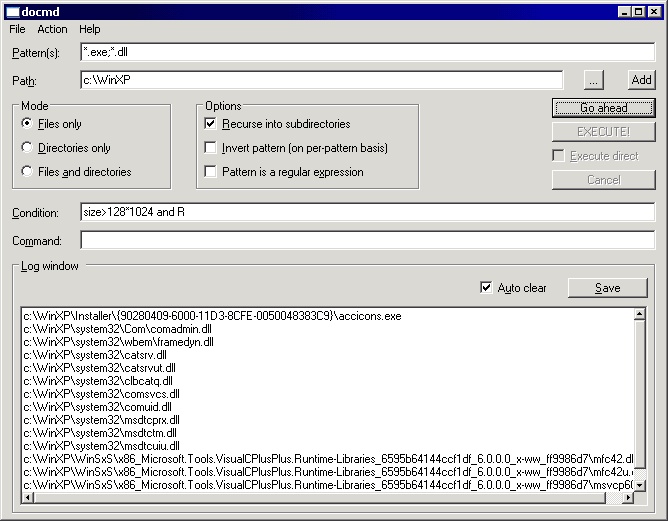
The GUI version of docmd works very similar to the command-line version. The main difference is one of convenience: you can easily fill in and edit all the required information in the various fields. docmd-gui also accepts parameters via the command line, almost like docmd does (the -EXEC and -v switches are not supported); the command-line values are used to initialise the relevant dialog fields.
Usage should be largely self-explaining as the dialog-box fields mostly mirror docmd's capabilities (see also docmd-gui's help screens in menu Help).
Once filled-in, the contents of all fields can be saved to a so-called session file; saved sessions files can also be loaded at a later time (see the File menu). The content of the log window, where the output goes, can be edited and saved as well.
Global @FILE loading and docmd.ini
Besides the @FILE parameter for the -cond= and -cmd= switches docmd and docmd-gui also support a global @FILE. Such a file may contain any and all supported switches, parameters and patterns, with exactly one switch, parameter or pattern per line. If used, this file should be the very first argument on the command line; its contents can be overridden by later command line arguments.
Assume the file myargs has the following content:
-s
-path=c:\
-cond=size>64*1024
then
docmd @myargs *.txt
- Lists all .txt files bigger than 64KB in all directories in drive c:\.
docmd @myargs -path=c:\windows\system32\ *.dll
- Lists all .dll files bigger than 64KB in directory c:\windows\system32\ and its subdirectories.
Starting with version 1.3, docmd tries to read a text file (called docmd.ini) from the directory it was started from. Similar to a global @FILE, this file can include initial values for switches, parameters and patterns, again one per line. Lines beginning with a # character are comment lines. (You can create docmd.ini (or indeed any @FILE for docmd or docmd-gui) with the GUI version of docmd by filling-in all the required fields and saving this as a session file.)
Input and output
If the -EXEC switch is not used docmd simply writes its output to the standard output (normally the console). However, this can easily be redirected to a file with the usual output redirection syntax:
docmd *.txt >list_of_text_files.lst
docmd can also read a list of files to process, either from a file or from standard input. It is also quite feasible to create such list files with docmd itself, as docmd writes to the standard output.
docmd -cond=A @list_file.txt
- This reads a list of file and/or directory names from files list_files.txt and prints all entries whose archive attribute is set.
docmd -cond=A @ <another_list_file.txt
- This reads a list of file and/or directory names from standard input (which is redirected from file another_list_file.txt) and prints all entries whose archive attribute is set.
It is possible to use the output of one docmd command as the input for another one by using the pipe syntax of the command processor:
docmd -s -mode=f *.txt | docmd "-cond=size>4096" @
This command line first collects all text files in the current directory and its subdirectories. It sends this list to the second docmd call which filters out all files larger than 4096 bytes. (Of course, this can be achieved with a single docmd call; however, for more complicated cases this chaining of calls can be quite useful.)
Note: if a list of files is given, the -path switch is ignored.
Exit code
docmd returns an exit code to the operating system. This is either the number of files processed (which is 0 or greater than 0) or -1 if one of the help screens was requested or if an error occurred.
$updated from: docmd.htxt Thu 27 Apr 2017 10:06:49 thomasl (By Thomas Lauer)$